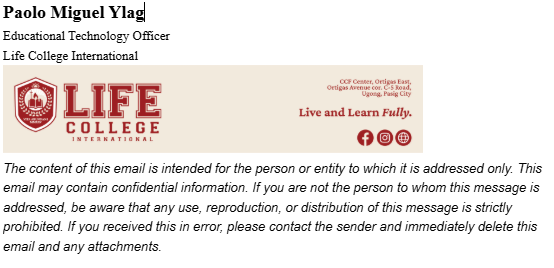
Please use the official e-signature link below so there is no need to upload the image manually:
https://amzn-s3-life-public.s3.us-east-1.amazonaws.com/cdn/email-signature/v1/life_esign.png
Preview
Required Email Signature Format
For your email signature, please use the following form
Please click the button below to view the sample image of the approved e-signature.
Below the photo in your signature, kindly include the following disclaimer exactly as written and in the required color:
The content of this email is intended for the person or entity to which it is addressed only. This email may contain confidential information. If you are not the person to whom this message is addressed, be aware that any use, reproduction, or distribution of this message is strictly prohibited. If you received this in error, please contact the sender and immediately delete this email and any attachments.